
Need to update an invoice, report, form, or business document? This guide explains the workflow, the tools available, and what to check before downloading.
Edit PDF Text in Four Simple Steps
Open a PDF
Choose a file on your device and open it in PDFInsert.
Select the text
Choose Edit Text, then click a word or mark a paragraph.
Make changes
Type your update, adjust formatting, and press Apply.
Download
Finish Editing, then download and review your updated PDF.
Get to Know the Real PDFInsert Editor
These are actual screenshots of PDFInsert, not conceptual mockups. Compare paragraph editing and precise individual text editing before trying it yourself.


Tip: These images were captured from the working editor. Controls may look slightly different after updates. For precise layout adjustments, a desktop or laptop is usually more comfortable than a phone.
Everything You Can Do with PDFInsert’s PDF Editor
PDFInsert is more than a text editor. Its Edit Text, Insert, Shapes, Annotate, and Forms workspaces, plus additional editing modes, help you update many parts of a document in one place.
What you can do with
the PDF Editor
PDFInsert gives you all the tools you need to edit and customize your PDF documents directly in your browser. Click any feature below to jump to the relevant section.
Edit Existing Text
Fix words, numbers, and lines already in a text-based PDF. Work with individual text or larger editable sections.
EDIT TEXTChange Fonts and Colors
Adjust font family, size, bold or italic styles, text color, alignment, and line spacing where supported.
EDIT TEXTMove and Resize Text
Reposition text boxes and adjust their width to help modified text fit the existing page layout.
EDIT TEXTAdd New Text
Place extra labels, explanations, headings, or other text on a page without replacing existing content.
INSERTInsert Images
Place a compatible image on a PDF page, then position and size it for your document.
INSERTDraw Shapes
Add visual shapes to frame content, point to information, or organize a page.
SHAPESAnnotate Pages
Add visual notes or markups to call attention to information while reviewing a document.
ANNOTATEWork with Forms
Use the Forms workspace to add or adjust supported form-related elements and fields.
FORMSAdd a Signature
Place a visual signature on a document using the editor’s signature feature.
SIGNATUREUse Stamps
Apply a stamp to help mark a document for review, organization, or approval workflows.
STAMPSDraw Freely
Use freehand drawing for quick visual marks, sketches, and handwritten-style notes.
FREE DRAWUndo and Remove Changes
Use Undo to revert a recent step or Delete to remove a selected editable item.
EDITOR CONTROLSAvailability and results can vary with the PDF’s structure, fonts, security settings, and your browser. These are the editing modes—not the separate compression, merging, or conversion tools on PDFInsert.
How to Edit a PDF Online in Six Simple Steps
Whether you’re changing existing text or adding a new element, the basic workflow is similar.
Open the PDF Editor
Visit the PDFInsert PDF Editor in a compatible web browser.
Choose Your PDF File
Select the PDF on your device and open it in the editing workspace.
Choose the Right Tool
Use Edit Text for existing text, Insert for new content, or choose Shapes, Annotate, Forms, or an additional tool as needed.
Select Text or a Page Location
Click the text you want to change, or choose where to place a new element on the PDF page.
Make and Review Your Changes
Type, draw, or adjust the selected item. Use the available size, color, position, formatting, and Apply controls where relevant.
Finish and Download
Select Finish Editing, follow the download option, and check the resulting PDF before sharing it.
Helpful tip: Review the downloaded PDF before sharing it, especially when the original contains complex tables, embedded fonts, or unusual layouts.
Change PDF Fonts, Size, and Colors
Editing a PDF involves more than changing words. PDFInsert provides formatting controls to help you work with text in supported PDF documents.
Change the font or preserve a recognized original font when supported.
Adjust text size to better match the surrounding content.
Apply bold, italic, underline, and different text colors.
Adjust alignment and resize or reposition editable text areas.
Some PDFs use embedded fonts or complex layouts. Always review your changes to make sure the document looks as expected.
Edit Individual Words or Entire Paragraphs
Sometimes you only need to correct a word or number. Other times, an entire paragraph needs updating.
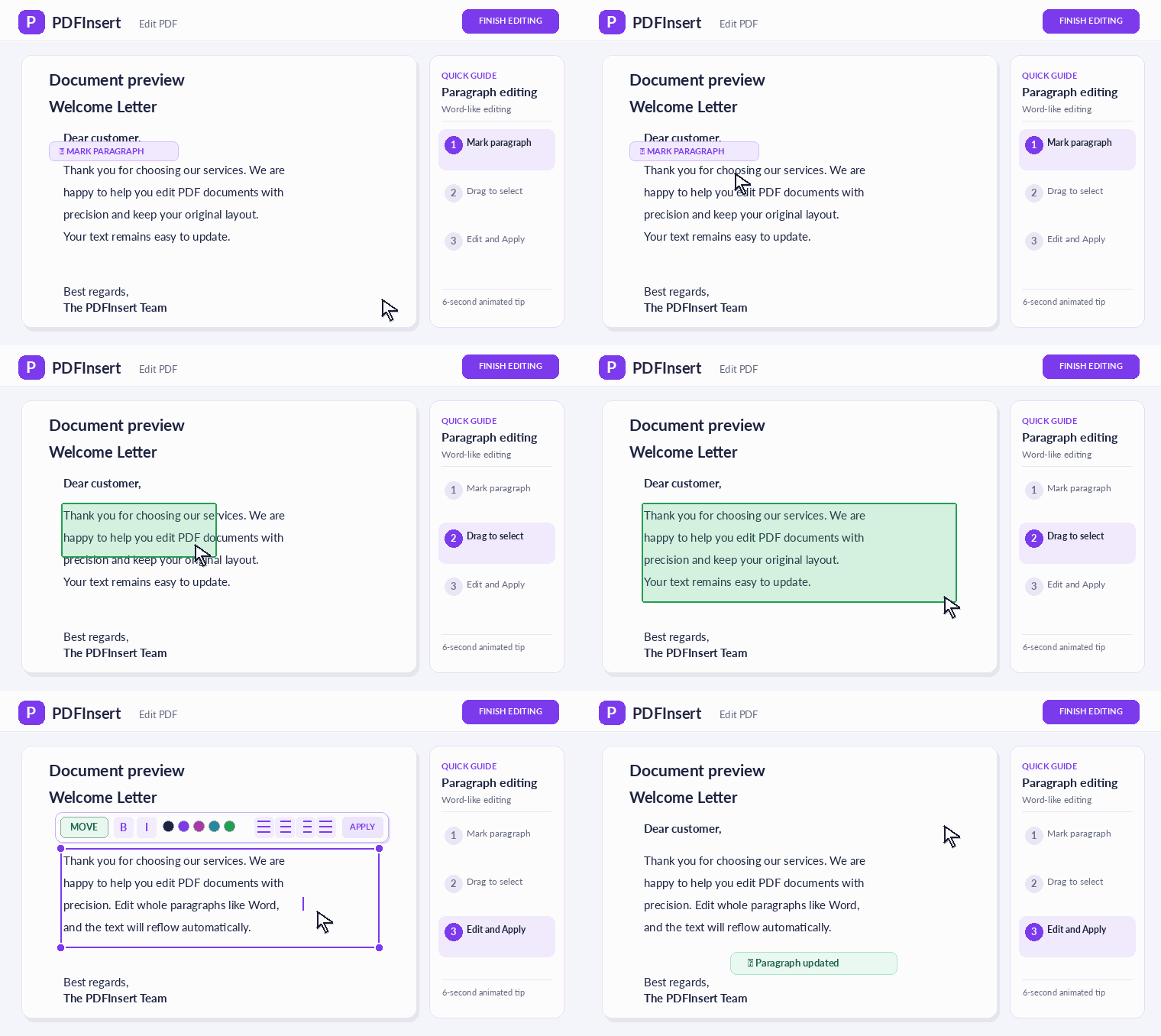
PDFInsert offers precise text editing and paragraph-style controls. For small corrections, select the appropriate text. For longer passages, use the available paragraph editing options to update the content and formatting.
These tools are useful for reports, invoices, forms, and everyday documents.
Two Ways to Edit Text in PDFInsert
These short animations demonstrate when to edit a single piece of text and when to work with an entire paragraph.

How to Insert Text, Images, and Shapes into a PDF
Editing existing text changes content already on the page. The Insert workspace helps when you need to add something new instead.
Add Text
Open Insert, choose the text option, select a page location, type your message, and adjust its appearance before finishing.
Insert an Image
Use Insert to choose a compatible image. Place it on the page and resize or move it to fit your layout.
Add Shapes
Open Shapes, choose an available shape, draw it on the page, and adjust its dimensions and appearance.
Reposition Elements
Select a supported editable element and use its positioning or sizing controls. This helps keep text, images, and shapes aligned with surrounding content.
Tip: If you’re correcting words already printed in the PDF, use Edit Text rather than placing new text directly over the original.
Insert Content, Signatures, and Stamps with Visual Controls
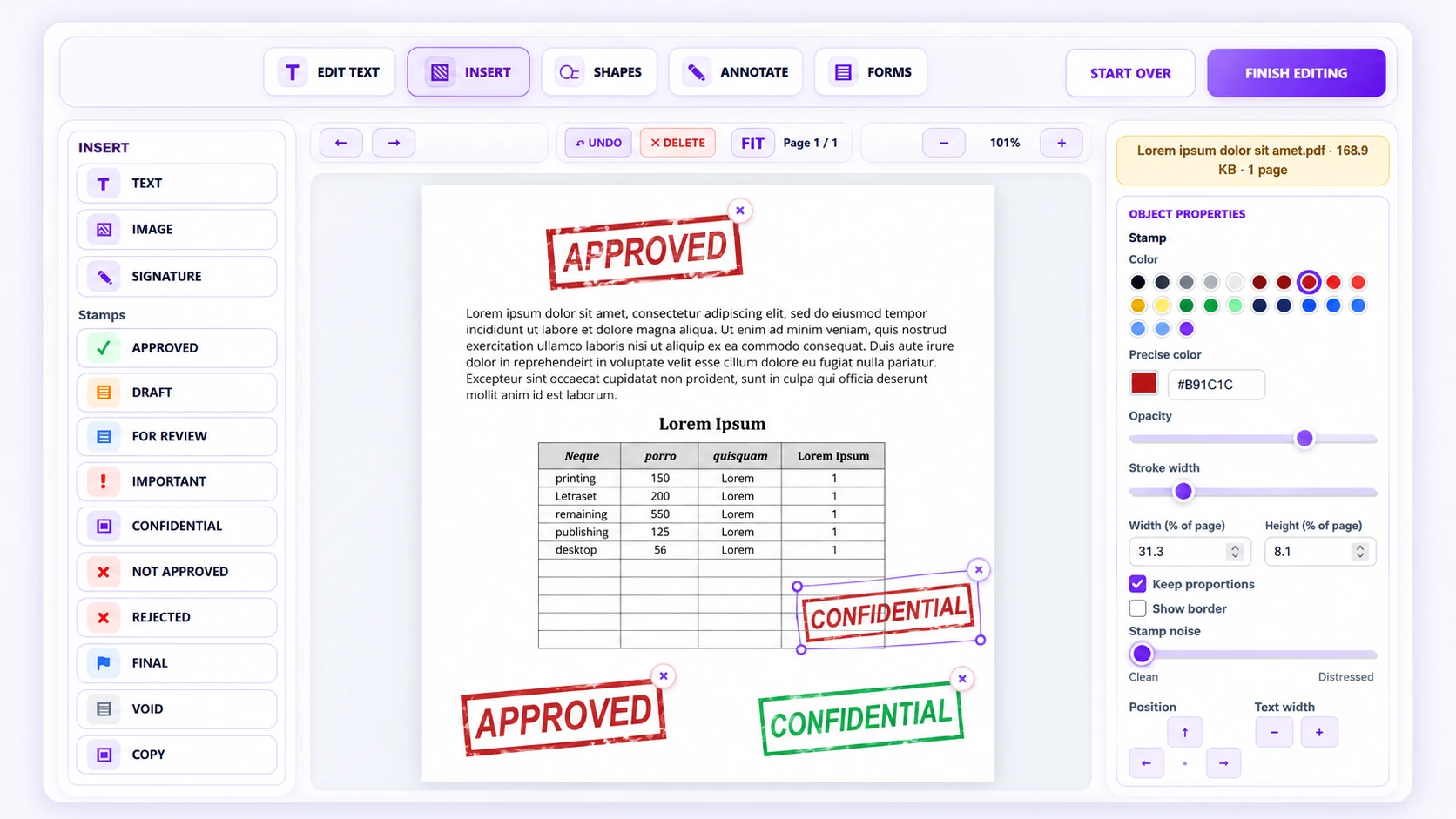
When you need to place new content on the page, PDFInsert gives you a practical workspace for text, images, signatures, and stamps. You can choose a stamp style, position it on the page, and fine-tune its color, opacity, size, and other object properties.
Annotate PDFs, Work with Forms, and Add Signatures
Not every PDF change involves rewriting text. The editor also offers ways to mark up pages or add form-related content.
Annotations
Choose Annotate to make supported visual marks or notes as you review a page. Check the result at your intended zoom level.
Forms
Choose Forms when working with supported fields or form elements, then review the result in the exported PDF.
Signatures and Stamps
Open the relevant additional editing mode to place a visual signature or stamp. Move or adjust the item before saving your PDF.
Freehand Drawing
Choose Free Draw to sketch or mark a page by hand or with a pointer, where supported by your device.
Signature note: Adding a visible signature is not necessarily the same as applying a certificate-based digital signature. Check the requirements of the organization receiving your document.
Edit PDF Documents Privately in Your Browser
Privacy matters when working with personal or business documents. PDFInsert’s local PDF editor performs document editing directly in your browser when you work with a file selected from your device.
These local editing operations do not require uploading the PDF to a remote conversion server.
- No account registration required.
- No subscription required.
- Free PDF editing tools.
- Local browser-based editing.
Can You Edit Text in a Scanned PDF?
Not every PDF contains selectable text. Scanned documents often store pages as images rather than individual text characters.
These documents may need optical character recognition (OCR) before the text can be edited. If your PDF already contains selectable text, direct editing is generally more straightforward.
Frequently Asked Questions
Is PDFInsert free to use?
Yes. PDFInsert offers free online PDF editing tools without requiring an account or subscription.
Can I edit existing PDF text?
Yes. The editor includes tools designed to modify existing text in supported PDF documents.
Can I change the font in a PDF?
Yes. You can change font settings using the available controls. Results depend on the document.
Do I need to install software?
No. PDFInsert works directly in a compatible web browser.
Will the original formatting be preserved?
PDFInsert attempts to retain the original appearance, but complex documents may require adjustments. Review the exported PDF.
Can I add new text, images, or shapes?
Yes. Use Insert for new text or compatible images and Shapes to add available geometric elements to a PDF page.
Can I annotate a PDF or draw on it?
Use Annotate for supported visual markup. The Free Draw feature provides additional freehand marking options.
Can I add a signature or stamp?
The editor includes signature and stamp modes for adding visible marks. A visual signature should not be confused with a certified digital signature.
Can I work with PDF forms?
The Forms workspace supports form-related editing features. Exact behavior depends on the form and the document.
Can I use the editor on mobile?
Yes. PDFInsert works in compatible mobile browsers, so you can edit PDFs on your phone or tablet.
For the most comfortable experience, we recommend a desktop or laptop computer. A larger screen, mouse, and keyboard make selecting text and adjusting formatting easier.
Mobile devices are convenient for quick edits on the go.
Ready to Make Your PDF Better?
Correct existing text, insert images, add shapes, annotate pages, or work with forms—all from the PDFInsert editor in your browser.